Why Is My Text Message Not Delivered? 20 Real Reasons & Fixes (iPhone & Android)
- March 3, 2026
- 16 Mins Read
- Listen
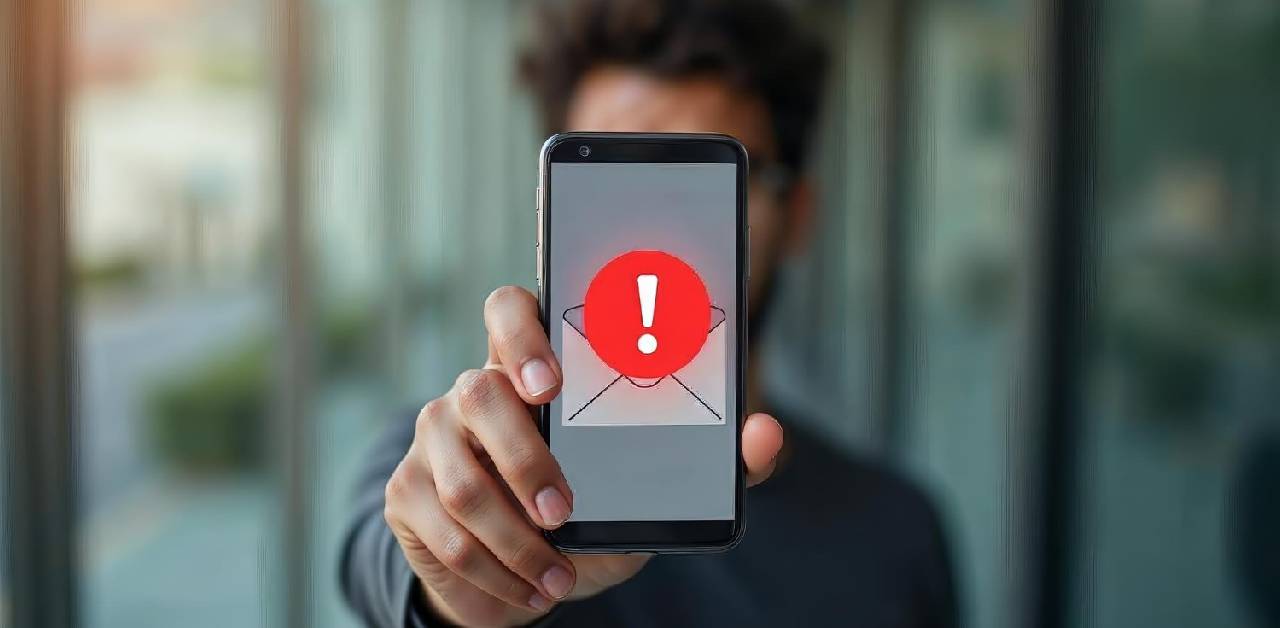
You send a text message expecting an instant response, but instead of seeing “Delivered,” nothing happens. In some cases, the message is simply delayed. In others, it may have been blocked, rejected by a carrier, flagged as spam, or never reached the recipient’s phone at all.
If you’re wondering why your text message was not delivered, the cause could be anything from a switched-off phone and poor network coverage to carrier outages, spam filters, or device-specific issues on iPhone and Android. This guide explains the 20 most common reasons and exactly how to fix them.
What Does “Not Delivered” Actually Mean?
When a text message is not delivered, it means the carrier’s delivery report (DLR) came back negative, the SMS was sent from your phone but never confirmed as received by the destination handset.
This is different from a message being unread. “Not Delivered” is a network-level failure, not just a human behaviour issue.
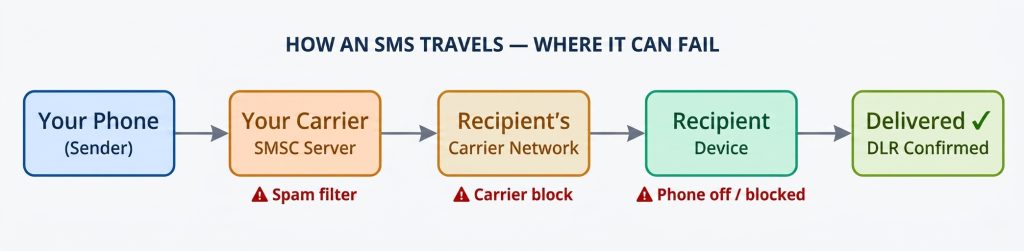
Failure can happen at four different points in the delivery chain — on your device, at your carrier, at the recipient’s carrier, or at the recipient’s device. Understanding where it failed determines how to fix it.
Part 1: Recipient-Side Reasons (8 Causes)
These are problems on the receiving end, issues you usually cannot control, but understanding them helps you know when to wait vs. when to act.
1. The Recipient’s Phone Is Switched Off
This is the single most common reason a message shows “not delivered.” When a phone is completely powered off, the carrier’s Short Message Service Centre (SMSC) cannot reach the handset and queues the message instead.
How long will the carrier retry? Most carriers retry delivery for 48 to 72 hours. After that, the message expires permanently and the recipient will never receive it even when they turn their phone back on.
What to Do
- Wait up to 48 hours, the message should deliver automatically once the phone is on.
- If urgent, try calling or sending via WhatsApp/email instead.
- If the message has expired, simply resend it.
2. Phone Is in Airplane Mode
Airplane mode disconnects all cellular and Wi-Fi connections. Any SMS sent while the recipient’s device is in airplane mode will queue at the carrier and deliver once airplane mode is disabled provided it’s within the retry window.
Did You Know? Many people forget to turn off airplane mode after landing. If someone appears unreachable after a flight, this is a likely culprit.
What to Do
- Wait for the recipient to reconnect, delivery will happen automatically.
- No action needed from your end; do not spam-resend the same message.
3. No Signal / Out of Coverage Area
When the recipient is in a dead zone, underground, in a remote area, or in a building with poor reception, the carrier marks their device as unreachable. The message enters the retry queue.
Unlike being powered off, a phone in a dead zone may reconnect quickly (e.g., when leaving a tunnel). Upon reconnecting, all queued messages typically deliver within seconds.
What to Do
- Wait and the message will usually auto-deliver when the signal returns.
- If 24+ hours pass with no delivery, resend the message.
4. You Have Been Blocked by the Recipient
This is what most people fear and it is a real cause of non-delivery. When someone blocks your number, your messages are silently dropped. On iPhone, a blocked message never shows “Delivered.” On Android, the experience varies by device and app.
How to tell if you’ve been blocked (without asking):
- Your messages never say “Delivered” ever.
- Calls go straight to voicemail after exactly one ring (or none).
- iMessages switch to green (SMS) bubbles and never show “Delivered.”
- The recipient’s WhatsApp/social activity continues normally (they’re not unreachable in general).
Important Note: No method guarantees you can confirm a block. “Not Delivered” alone does not mean you’re blocked, the phone could simply be off. A combination of failed calls AND no delivery over multiple days is a stronger indicator.
What to Do
- Try calling from a different number to see if the call connects.
- Reach out through another channel (email, WhatsApp from a different number).
- Respect the other person’s communication choices.
5. Do Not Disturb (DND) Mode Is Active
Do Not Disturb silences incoming notifications and, on some carrier platforms, can actually block delivery of marketing or unsolicited messages entirely. This is especially common in countries like India, where the national DND registry prevents promotional SMS from reaching opted-in consumers.
On a personal level, iOS and Android DND modes do not block message delivery, the message arrives but the person isn’t notified. However, carrier-level DND services in some regions do block delivery outright.
What to Do
- If sending personal messages: DND usually does not affect you, the message is delivered, just silently.
- If sending business/marketing SMS: ensure your contacts have opted in and are not on national DND registries.
6. Recipient’s Phone Memory Is Full
Older feature phones and some budget Android devices have limited internal memory for storing SMS messages. When the message inbox is completely full (often a cap of 200–500 messages on older devices), the phone actively rejects new incoming messages at the carrier level.
Modern smartphones (iPhone, flagship Android) do not have this issue, storage is managed automatically. This cause mainly affects older or low-memory devices.
What to Do
- Ask the recipient to delete old messages from their inbox.
- Resend after they’ve cleared space.
7. SIM Card Issues on the Recipient’s Device
A SIM card that is not properly seated, damaged, deactivated, or missing entirely will prevent message delivery. This is more common than you’d think, especially with people who have recently changed devices or swapped SIM cards.
The carrier sees the device as “offline” or “unregistered,” resulting in delivery failure.
What to Do
- The recipient should check that their SIM is properly inserted.
- Restarting the phone often resolves SIM registration issues.
- Contact the carrier if the SIM appears deactivated.
8. The Phone Is “Hanging” on the Network
Sometimes a mobile phone appears fully connected (all signal bars showing) but is not actually exchanging data with the network. The device is “stuck”, it believes it’s online, but the carrier can’t deliver messages to it.
This typically resolves itself, but a manual network reconnect (restarting the phone, or toggling airplane mode on then off) forces re-registration with the carrier and triggers delivery of all queued messages.
What to Do
- Recipient: restart your phone, or toggle airplane mode off and on.
- This often causes a burst of previously undelivered messages to arrive at once.
Part 2: Carrier & Network Reasons (6 Causes)
These are failures that occur in the telecommunications infrastructure between the two carriers, or within the carrier’s own systems. They are often temporary but can be confusing because you receive no clear error message.
9. Your Message Was Flagged as Spam by the Carrier
Carriers deploy increasingly sophisticated AI-powered spam filters to protect their subscribers. These filters analyse message content, sending patterns, and sender reputation in real time. If your message triggers the filter, it is silently dropped, you may not receive any error at all.
Common spam trigger patterns:
- Shortened URLs (bit.ly, tinyurl.com) — carriers cannot verify where they lead
- ALL CAPS text like “CLICK HERE NOW FREE!!!”
- Excessive special characters or emojis
- Sending identical messages to many recipients rapidly
- High message volume from a single number in a short time
- Messages containing certain “trigger words” like “Free,” “Win,” “Prize,” “Urgent”
Worst-Case Scenario: Repeated spam filtering can result in your sending number being permanently blocked by a carrier. For business senders, this can mean losing a phone number entirely.
What to Do
- Use direct, conversational language — no “marketing speak.”
- Replace shortened URLs with full, branded URLs.
- Avoid sending the same message to large groups simultaneously.
- For business SMS: register for A2P 10DLC (US) or equivalent carrier programme.
10. Carrier Network Outage or Congestion
Carrier networks occasionally experience outages. During peak events (New Year’s Eve, major sporting events, natural disasters), SMS networks can become severely congested, causing delays or failures. These are temporary and affect all users on the impacted network, not just you.
What to Do
- Check your carrier’s status page or social media for reported outages.
- Wait and retry; outages are almost always resolved within hours.
- Use data-based messaging (WhatsApp, iMessage) as a fallback during outages.
11. Wrong or Invalid Phone Number
A single transposed digit, a missing country code, or a discontinued number will result in immediate delivery failure. The SMSC has no way to route the message and returns an error.
Common formatting mistakes:
- Forgetting the country code for international numbers (e.g., +44 for UK, +880 for Bangladesh)
- Including spaces or dashes in the number
- Entering a landline number that doesn’t support SMS
- The number has been recycled/deactivated by the carrier
What to Do
- Double-check the number; especially country code and area code.
- Confirm with the recipient via another channel (email, social media) that the number is still active.
- For bulk SMS: use a phone number validation API to scrub your contact list regularly.
12. Recipient’s Account Suspended (Billing Issues)
If the recipient is on a prepaid plan and has run out of credit, or if their postpaid account has an overdue balance, the carrier may suspend their account. A suspended account cannot receive SMS messages.
This is also common when someone is in the middle of porting their number from one carrier to another, during the porting window (typically a few hours), the number may be temporarily unreachable.
What to Do
- Wait; billing issues and number porting are typically resolved within 24 hours.
- Try calling: suspended SMS does not always mean calls are disabled.
13. Roaming Restrictions
Some mobile contracts do not include international roaming for SMS, or have specific restrictions on receiving texts while abroad. If the recipient is travelling and their plan does not include international roaming, messages sent to them may be blocked by the carrier at the routing level.
What to Do
- Use internet-based messaging apps (WhatsApp, Telegram, iMessage over Wi-Fi).
- Recipients should contact their carrier to enable international SMS roaming.
14. Time Restrictions (Country-Specific Regulations)
Many countries have regulations controlling when marketing SMS can be sent. Messages sent outside permitted hours are blocked at the carrier level, not just delayed, but dropped entirely.
| Country | Permitted Hours (Marketing SMS) | Regulator |
| 🇺🇸 United States | 8:00 AM – 9:00 PM (recipient’s local time) | TCPA |
| 🇫🇷 France | 8:00 AM – 8:00 PM | ARCEP |
| 🇮🇳 India | 9:00 AM – 9:00 PM | TRAI |
| 🇬🇧 UK | No strict hours, but ICO guidelines apply | ICO |
| 🇦🇺 Australia | 9:00 AM – 9:00 PM weekdays, 9 AM – 5 PM weekends | ACMA |
What to Do
- Schedule all marketing messages within regulatory hours for the recipient’s time zone.
- Use SMS platforms that automatically handle time-zone-aware scheduling.
Part 3: Content & Compliance Reasons (4 Causes)
15. Message Contains Prohibited or Illegal Content
Carriers in most countries are legally required to block messages containing certain types of content. The CTIA (US), Ofcom (UK), TRAI (India), and similar bodies publish guidelines on prohibited SMS content categories.
Automatically blocked content categories:
- Adult/explicit content (to non-consenting recipients)
- Content related to illegal substances or activities
- Phishing or fraudulent messaging
- Harassment, threats, or abusive language (in some jurisdictions)
- Content promoting regulated industries without proper disclosures (loans, gambling, cannabis)
What to Do
- Review CTIA/Ofcom/TRAI guidelines for your target market before sending.
- For regulated industries (finance, cannabis, gambling), include required disclosures and use compliant platforms.
16. Message Contains Non-GSM Characters
Standard SMS uses the GSM-7 character set, a 7-bit encoding that supports 160 characters per message. If your message contains characters outside this set (emoji, certain accented letters, Chinese/Arabic/Bengali characters), the message switches to Unicode (UCS-2) encoding, which only allows 70 characters per segment.
Some older carrier gateways reject messages containing non-GSM characters entirely. Others accept them but fragment them in a way that arrives garbled or incomplete.
Watch Out For: “Smart quotes” copied from Word documents, em dashes (—), and curly apostrophes are common non-GSM characters that cause invisible encoding issues.
What to Do
- Use a Unicode detector tool to scan your message before sending.
- Replace special characters with GSM-7 equivalents where possible.
- If Unicode is necessary, ensure your SMS platform supports UCS-2 encoding.
17. Message Is Too Long (Exceeds Carrier Limits)
While most modern carriers support concatenated SMS (long messages split into segments and reassembled), there is a practical limit. Most carrier networks support up to about 1,600 characters (10 segments). Messages beyond this may be rejected outright.
Additionally, concatenated messages sometimes fail to reassemble correctly, arriving as fragmented separate messages or triggering spam filters due to the high segment count.
What to Do
- Keep messages under 160 characters (GSM-7) or 70 characters (Unicode) for single-segment reliability.
- For longer content, link to a webpage or use email/messaging apps instead.
18. Sender ID Not Permitted in the Destination Country
Many countries have specific rules about SMS sender IDs (the name or number that appears as the “From” field). Some countries prohibit dynamic alphanumeric sender IDs entirely; only registered, pre-approved sender IDs are permitted.
Common examples: China, Vietnam, UAE, Saudi Arabia, and several African countries require sender ID pre-registration. Messages with unregistered sender IDs are simply blocked.
What to Do
- Check sender ID regulations for each country you are messaging.
- Pre-register your sender ID with local telecom authorities where required.
- Use a local virtual number in regulated markets instead of an alphanumeric ID.
Device-Specific Fixes: iPhone vs. Android
The troubleshooting steps differ significantly between iOS and Android. Select your device below.
| Step | iPhone (iOS) | Android |
| 1. Check Message Failure | Look for a red “!” icon beside the message. Tap it and select Try Again. | Ensure you’re using the correct SMS app and verify message status in the app. |
| 2. Check Network Connection | Go to Settings → Cellular and ensure Cellular Data is ON. Try switching between Wi-Fi and mobile data. | Go to Settings → Network & Internet → Mobile Data and ensure data is enabled. |
| 3. Verify Messaging Service | Settings → Messages → iMessage. Make sure iMessage is enabled. | Google Messages → Settings → RCS Chats. Disable RCS temporarily if it’s causing issues. |
| 4. Enable SMS Fallback | Settings → Messages → Send as SMS. Turn it ON. | Ensure a standard SMS app is set as the default messaging app. |
| 5. Check Focus/Do Not Disturb | Settings → Focus → Do Not Disturb. Make sure it’s OFF. | Check Do Not Disturb settings and disable if necessary. |
| 6. Clear App Issues | Not usually required. | Settings → Apps → [Messaging App] → Storage → Clear Cache. |
| 7. SIM & Carrier Check | Verify your carrier service is active. | Remove and reinsert the SIM card to force network re-registration. |
| 8. Network Reset | Settings → General → Transfer or Reset → Reset → Reset Network Settings. | Check the SMSC number (carrier message center number) if SMS isn’t sending. |
| 9. Software Update | Settings → General → Software Update. Install any available updates. | Update Android and the messaging app from the Play Store. |
| 10. Last Resort | Contact Apple Support for Apple ID/iMessage activation issues. | Back up data and perform a factory reset if all other methods fail. |
Key Differences
| iPhone (iOS) | Android |
| Blue bubble = iMessage (internet-based) | May use RCS or SMS depending on settings |
| Green bubble = SMS/MMS (carrier-based) | RCS can sometimes interfere with SMS delivery |
| Problems often relate to iMessage activation or Apple ID | Problems often relate to RCS settings, SMS app configuration, or carrier SMSC settings |
| Uses iMessage + SMS fallback | Uses SMS/MMS + optional RCS |
Carrier-specific note (Android):
- T-Mobile: Dial #632# to disable Scam Shield SMS filtering if messages are being blocked.
- AT&T: Check SMS filtering settings in the Active Armor app.
Part 4: Business SMS – 2 Additional Causes
If you’re sending SMS through a business platform (bulk SMS, appointment reminders, marketing campaigns), you face two additional delivery challenges that personal users don’t encounter.
19. Not Registered for A2P 10DLC (US Business Senders)
In the United States, A2P 10DLC (Application-to-Person 10-Digit Long Code) registration is now mandatory for any business sending SMS through a virtual phone number or SMS platform. Carriers aggressively filter and block unregistered traffic.
10DLC registration requires:
- Brand registration — registering your company with The Campaign Registry (TCR)
- Campaign registration — describing the type of messages you’ll send (marketing, notifications, 2FA, etc.)
- Number association — linking your sending numbers to your registered campaign
Critical for US Businesses: Without 10DLC registration, carriers may filter 50–100% of your messages. This is not optional, it is an industry-wide requirement enforced by all major US carriers since 2023.
What to Do
- Register your brand and campaign at campaignregistry.com or through your SMS platform.
- Registration typically takes 2–5 business days.
- If using toll-free numbers, complete toll-free verification instead.
20. Recipient Opted Out (STOP Command)
In most countries, business SMS programmes are required to honour opt-out requests. When a recipient replies “STOP” (or QUIT, CANCEL, UNSUBSCRIBE), the carrier or SMS platform marks them as opted-out. All subsequent messages to that number are blocked.
This is not a bug, it is a legally mandated feature. Attempting to continue messaging an opted-out recipient can result in significant TCPA, GDPR, or PECR fines.
What to Do
- Honour all opt-out requests immediately — do not attempt to bypass them.
- If the person re-subscribes by replying “START,” they can receive messages again.
- Review your opt-out list regularly and suppress those numbers from future campaigns.
Understanding SMS Delivery Status Codes
If you’re using a business SMS platform, you’ll see specific status codes rather than just “Delivered” or “Not Delivered.” Here’s what the most common codes mean:
| Status Code | Meaning | Likely Cause | Action |
| DELIVERED | Carrier confirmed receipt by device | — | None needed |
| SENT TO CARRIER | Left your platform, no final DLR yet | Carrier delay | Wait up to 24h |
| UNDELIVERABLE | Carrier confirmed permanent failure | Invalid/disconnected number | Remove from list |
| PHONE UNREACHABLE | Device offline, queued for retry | Off/airplane mode/no signal | Wait for retry |
| REJECTED — SPAM | Carrier spam filter blocked it | Content/volume/compliance issue | Revise content, check 10DLC |
| DISALLOWED URL | Short/redirecting link blocked | Shortened URL in message | Use full branded URL |
| CARRIER LIMIT EXCEEDED | Sending volume hit carrier cap | Too many messages too fast | Contact provider, throttle sends |
| REJECTED BY HANDSET | Device-level block | Recipient blocked your number | No action possible |
Quick Checklist: What to Do When a Text Isn’t Delivered
Run through this checklist in order before concluding there is a major problem:
- Verify the phone number is correct, including country code
- Check your own network connection (cellular signal or Wi-Fi)
- Wait 15–30 minutes, temporary outages often resolve themselves
- Try calling the recipient, if it rings, they’re reachable
- Check if you can reach the recipient via WhatsApp or social media
- Restart your own phone and try resending
- Try sending from a different messaging app (e.g., WhatsApp instead of SMS)
- Ask a mutual contact to message the recipient as a test
- For business SMS: verify 10DLC registration and check for opt-outs
- Contact your carrier if the issue persists across multiple recipients
Wrapping Up
Text message delivery failures are almost always explainable and in most cases, fixable. The key is understanding where in the delivery chain the failure occurred: on the sender side, during carrier routing, at the recipient’s carrier, or on the destination device.
For personal users, the most common causes are the phone being off, no signal, airplane mode, or being blocked. Almost all of these resolve on their own within hours.
For business senders, the biggest factors are carrier spam filtering, A2P 10DLC compliance, message content quality, and honouring opt-outs. Getting these right makes the difference between a 98% delivery rate and a 60% one.
If you consistently experience delivery failures that none of the above explanations resolve, contact your carrier directly, they have access to server-side delivery logs that can identify the precise failure point.
Frequently Asked Questions